
I know I’m going to sound like a broken record, but man! Have you noticed the rise in Facebook group popularity over the last few years?
Regardless of the niche, it seems like everyone and their mother has a group.
And why not? Groups are absolutely the best way to cultivate your following and build your own community.
Now I’m assuming since you’re reading this, that you already have a facebook group. So that means you know Facebook doesn’t have the ability to collect and let you to email your group members directly.
I mean look, I know you’re a savvy person and you probably have a few workarounds you’re applying to add your group members to your email list. But I know it’s a very time consuming for you.
But what if I told you there was a better way to automatically collect emails and add your Facebook group members to your choice of the best autoresponders, all without Zapier!
Well guess what..there is!
It’s called Group Leads and I was recently introduced to it by the creator Jamiu Oloyede and I decided to test it out with my newly launched Affiliate Marketing Facebook Group.
When you get started, set up time is relatively short and straight forward. Once completed, the extension takes care of everything else automatically.
So in this review, I’ll be going over Group Leads and also give a short tutorial of how to use it to collect leads from your Facebook group and add them to your autoresponder.
Group Leads Review & Tutorial
UPDATED: March 7, 2022
Summary:Group Leads is a Google Chrome extension that helps you to convert new facebook group members into leads within your chosen email marketing software with a click of button.

What Is Group Leads?
If you’ve ever had a Facebook group, then you know that when people request to join your group, you have the option to ask them up to 3 questions.
This allows you to do 2 things:
- Screen those who request to join to make sure they’re actually a good fit for your facebook group
- Weed out low quality people by utilizing friction points.
Some Facebook group owners are thinking outside the box and using one of those questions as an opportunity to collect email addresses (something every group owner should be doing). This allows them to offer a lead magnet in exchange for that email address.

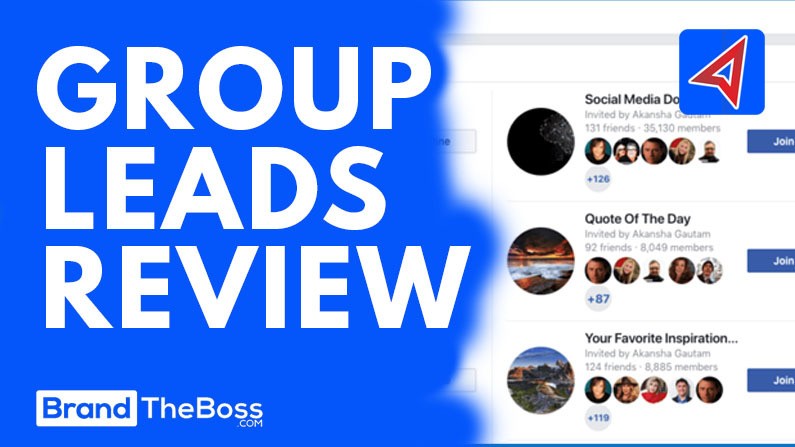
While this is fantastic move on your part, there is still one problem. You have to manually add each contact into your own autoresponder. You might be saying to yourself “pssh..that ain’t a problem“, but you try adding contacts to your email autoresponder one at a time as your Facebook group grows. You see the amount of group members in that image above?
So what do you do?
You fix the problem by automating the task with Group Leads!
It’s a convenient Google Chrome extension that has solved this very issue. Once you approve a member to your group, it saves their info (username, first name, last name) including their answers from your Group’s questionnaire.
At that point you can have the extension transfer that data to a Google Sheet (that Group Leads provides) and select the email autoresponder of your choice amongst the current options they provide.
So whenever a new contact is added to your Google Sheet, Group Leads automatically adds then to your autoresponder.
What’s cool about Group Leads is that it’s super affordable in comparison to a similar product called Group Funnels. It’s introductory price is only $27 a month to use it with 2 Facebook groups. As where Group Funnels, though it has been in the market longer costs $297.
Which is why in my opinion, Group Leads is the better alternative to Group Funnels.
How To Set Up Group Leads?
Once you have signed up for Group Leads, you’ll need to complete a few setup steps.

First, you’ll get a link to install the Chrome Extension. Here you can watch the demo video. This will also add the Group Leads icon to your Google Chrome browser:

Then click on the icon and a window will appear asking you to enter your license key that you would’ve received after purchase.

The 2nd step will be to grab the Google sheet template that is provided to you after you purchase. This is where your Facebook group members contact info, email address and other answers will end up being stored.

Now you will notice that when you open the template, it will be in “view only” mode. Make a copy of the template and rename it to whatever you’d like. I used my Facebook Group name.

Finally, it’s time to connect Group Leads to your autoresponder. They have integrations with over a dozen different email marketing software.

All you have to do is connect your autoresponder’s API and select what email list you’ve designated for Group Leads to send your group members information to.
Once you’ve completed that..you are all set! Now go back to your Facebook Group and set up your member request questionnaire.
Be sure you add 3 questions. The first two can be anything you like such as “How did you find us?” and “Do you promise not to spam the group?”. Just make sure that the last question asks for their email address.
Also incentivize them to give you their email. This can be done through a simple lead magnet, like a guide, checklist, tutorial or video. Not everyone will want to do this, but it goes a long way. Just be sure whatever it is you use, it’s highly relevant to your group’s topic.
How To Use Group Leads?
It’s pretty simple to use Group Leads once it’s set up. Somehow the extension is already synced with Facebook. So it’ll work for your group on autopilot.
Once someone requests to join your group and you approve them, Group Leads will automatically add their information to the google sheet URL you verified and add them to your email list.
How Much Does Group Leads Cost?
As I mentioned earlier, Group Leads is extremely affordable.
- The Starter Plan costs $27/month to use the extension for unlimited Facebook groups.
- The Pro Plan cost $37/month to use it for unlimited Facebook groups.
- The Unlimited Plan costs $57/Month for unlimited Facebook groups and Lifetime Access.
All Plans come with a Free 7-Day Trial

Compared to Group Funnels, you’re actually saving money by having the option to use a lower tiered plan. Plus you’re getting a free trial to test it all out on your Facebook groups.
What’s Next For Group Leads?
Group Leads is still a relatively new product, and the extremely low pricing reflects this. I’m sure new features and updates will be coming out. I really hope that in the next update that they add even more autoresponder options. But it stands to reason that as Group Leads gains popularity and new features are added, the price could very well increase. So take advantage of this one.
My Final Thoughts
Group Leads is a very exciting tool at a very reasonable price. The set up is quite simple and quick to implement. What I actually value the most is the ability to connect to my autoresponder from the extension. I do my best to avoid Zapier if I can.
My only concern is, how to actually manage multiple facebook groups, because I certainly don’t want to mix different group members into one google sheet. I’m sure there is an easy answer for that but I haven’t figured that one out yet. I will be sure to update this once I do.
So, now that you are all setup, you now have the ability to automatically collect the email addresses of your Facebook group members and send them directly to your email list. This will definitely level-up your business!
With Group Leads, you’ll now have the ability to reach some of your most supportive fans and customers via email. This will not only help you grow your list, but also make more sales.
If you currently own a Facebook group or thinking of starting one, then Group Leads should be considered as one of the go to Facebook tools.
If you’re thinking about giving it try, let me know what you thought about Group Leads in the comments. Did you like it and if you didn’t, what do you prefer and why?
Get your copy of the extension by using the button below:
Did This Help You? If so, I would greatly appreciate it if you commented below and shared on Facebook

Mike Garvey JrFounder of BrandTheBoss.com
Work From Home
Want to learn how to start an online business and work from home like I do?
Affiliate Disclaimer: We hope you liked this Group Leads review. Please note that some of the links inside this article may be affiliate links to Group Leads. That means that if you click on one of the links and sign up, we may be compensated for it. If you do happen to click, we really appreciate it! Any money we make keeps this site running and allows us to keep writing these high-quality reviews.
Here are some other posts from our site that you may like: